A self-guided look inside MMAP

See the work.
Understand the design.

Follow the work through a school day: lesson records, family questions, enrollment, and leadership follow-ups. Explore familiar tasks, then watch five short walkthroughs using a fictional school.

Walk through the work

A school day,
with a place for the details.

Choose a familiar task. See where it lives and how the pieces connect.

01For guidesRecord a presentation.
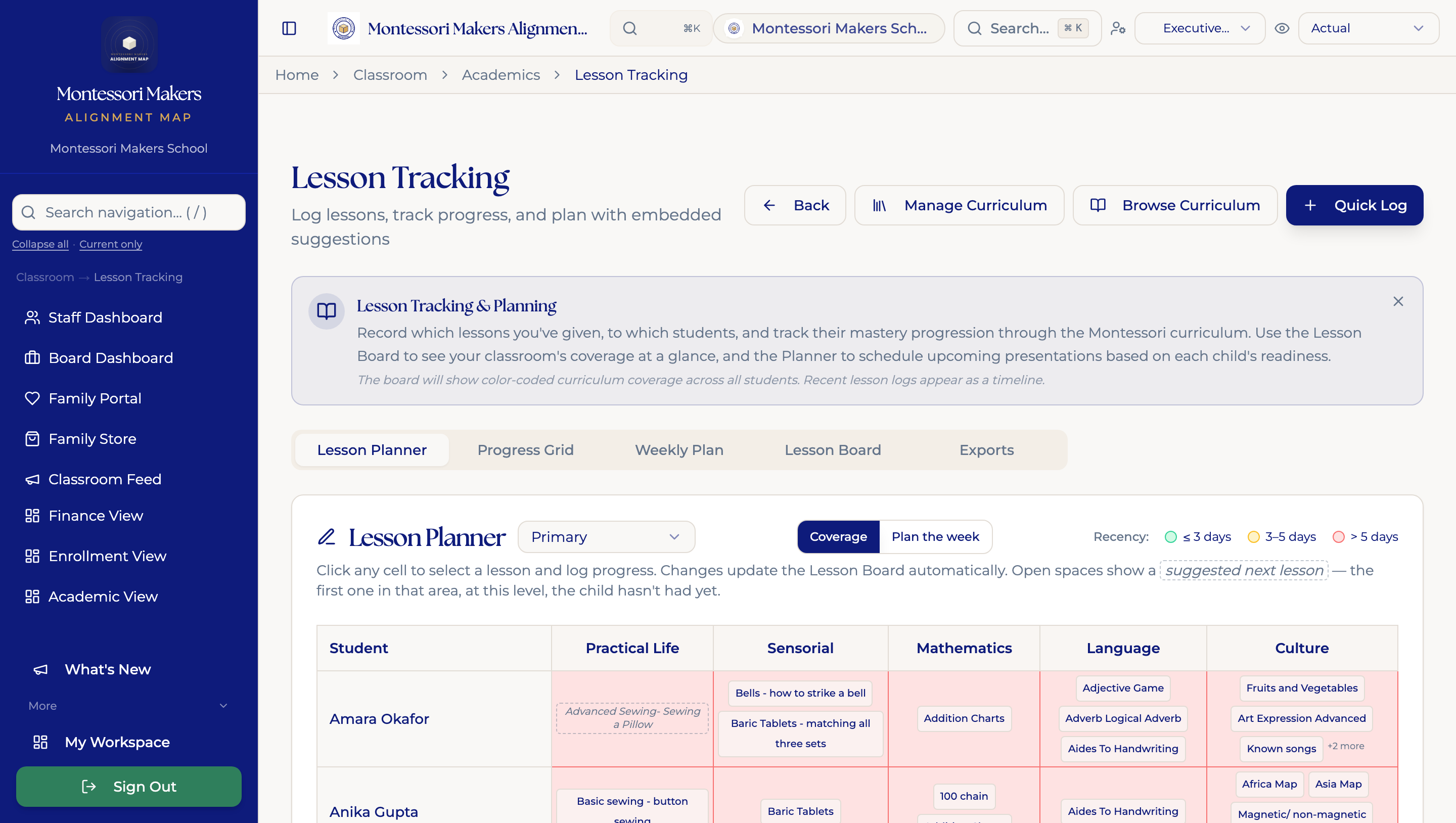
MMAP Lesson Tracking, with Quick Log, curriculum areas, and the Lesson Planner
Actual product screen · demonstration school · select to enlarge. The buttons above explain the workflow; this is a screenshot, not a live account.

Step 1 / 3

Find the work

The Lesson Planner places children beside the curriculum areas. Start with the child and presentation you want to record, or use Quick Log.

Classroom tools in Surveyor →

Availability depends on your tier and school setup. Compare plans.

From a school using MMAP

“There really has never been anything, in my 25 years of teaching and working in schools, that can do so much to support teachers and strengthen classroom learning.”
Sarah PlumbAdolescent Lead Guide
02For guides and familiesPrepare a family conference.
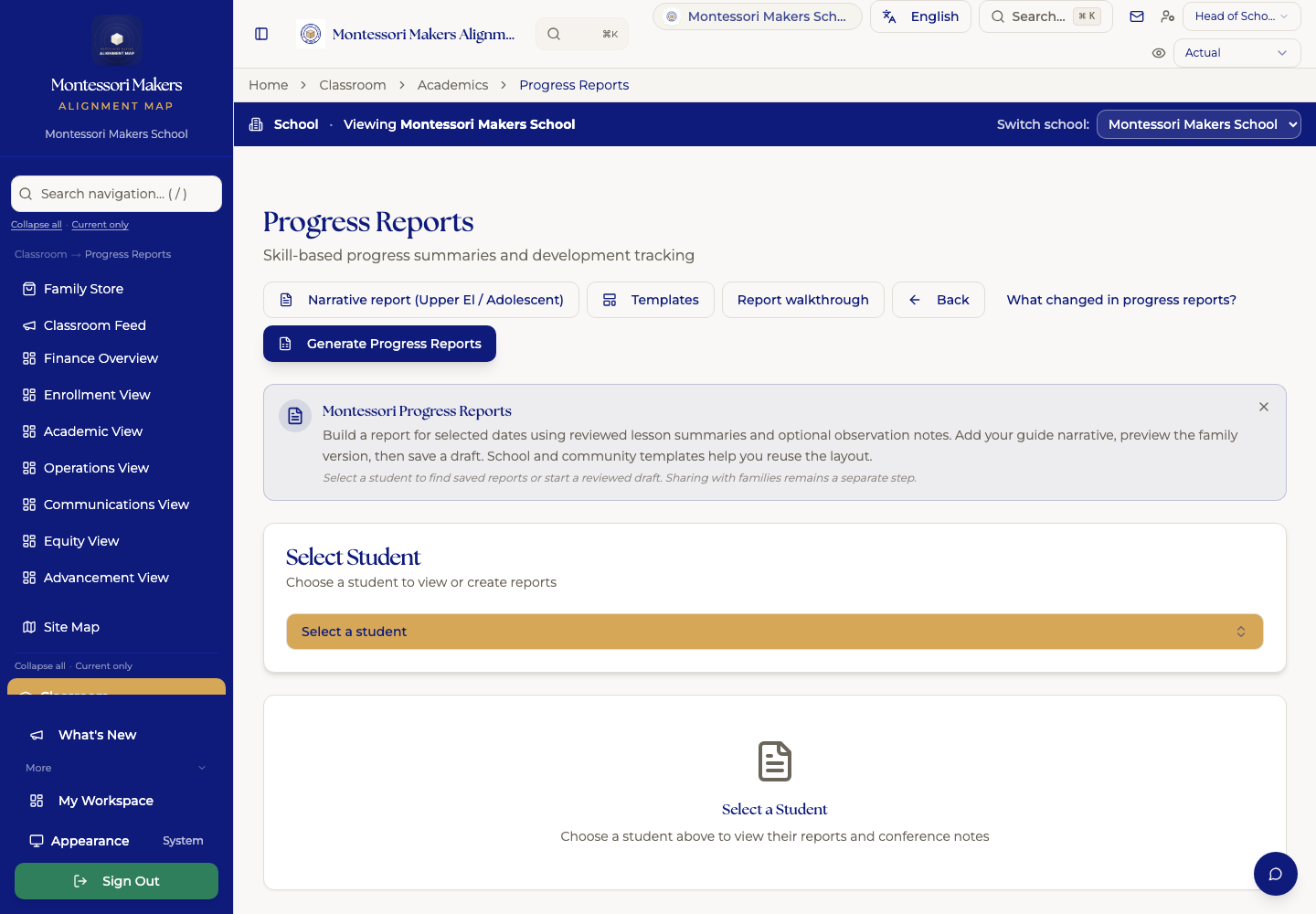
MMAP Progress Reports, showing student selection, templates, and report generation
Actual product screen · demonstration school · select to enlarge. The buttons above explain the workflow; this is a screenshot, not a live account.

Step 1 / 3

Choose the child

Open Progress Reports and select a student. Begin with that child’s lesson history and observations, rather than an empty document.

Explore progress reports →

Availability depends on your tier and school setup. Compare plans.

From a school using MMAP

“It is robust and powerful and is going to be such a game changer for record keeping.”
Sarah PlumbAdolescent Lead Guide
03For the school officeFollow an inquiry into enrollment.
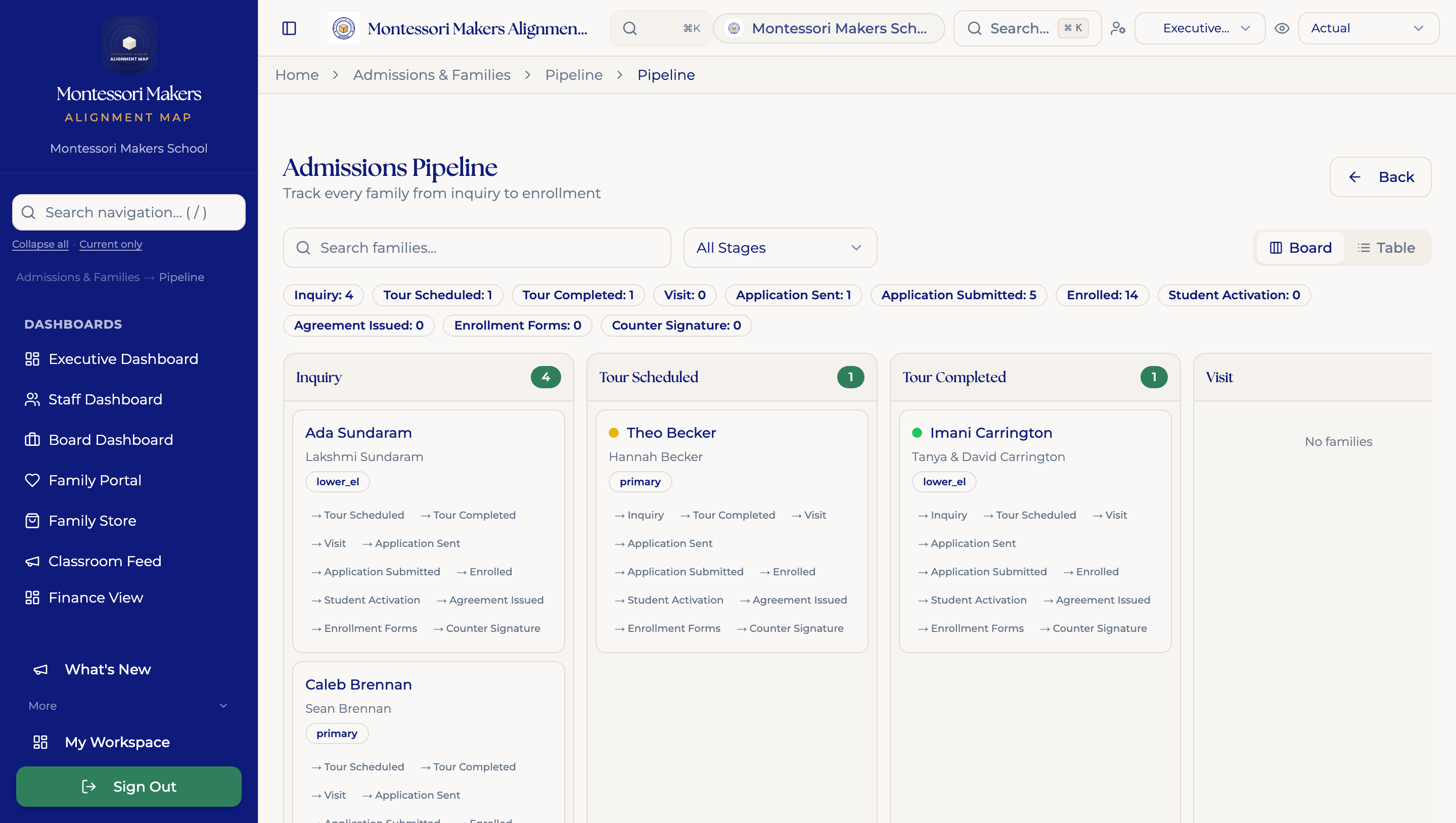
MMAP Admissions Pipeline with Inquiry, Tour Scheduled, Tour Completed, and Visit columns
Actual product screen · demonstration school · select to enlarge. The buttons above explain the workflow; this is a screenshot, not a live account.

Step 1 / 3

See the next step

The pipeline groups families by stage. Search for a family or filter the view to find inquiries, visits, and applications that need attention.

Explore admissions tools →

Availability depends on your tier and school setup. Compare plans.

From a school using MMAP

“I send an email on MMAP and then send an SMS telling parents to check their emails, and because they look at their texts, the emails get read.”
An MMAP schoolThree weeks into the year

01 / September 2026

Plan, record, review

Montessori planning begins with the child and the work. In the lesson planner, children sit beside curriculum areas so a guide can consider individual experience within a mixed age community.

Fictional demonstration school · Instrumental music · English captions

Read the walkthrough

Montessori planning begins with the child and the work. In the lesson planner, children sit beside curriculum areas so a guide can consider individual experience within a mixed age community.

Quick Log brings the children, learning area, lesson, and observed status into one place. A presentation is an invitation to work. It is not evidence of mastery. This demonstration form has not been submitted.

Progress Review brings dated records back into view. Read what was actually documented before deciding what to revisit. Missing records and time at one status do not tell you what a child is capable of.

Progress reports bring reviewed evidence and the guide's narrative together. Preview what the family will see, then save a draft. Sharing remains a separate decision. The records support the prepared adult's judgment.

02 / September 2026

Lead with a clear next step

The school dashboard begins with recorded items that need attention. Each item identifies a responsibility area. A count is a reason to inspect the source record, rather than a conclusion about urgency.

Fictional demonstration school · Instrumental music · English captions

Read the walkthrough

The school dashboard begins with recorded items that need attention. Each item identifies a responsibility area. A count is a reason to inspect the source record, rather than a conclusion about urgency.

Leadership check ins keep an owner, a next step, and a review date together. This helps colleagues work independently and return to the same shared record when they meet.

Meetings begin with a purpose and an agenda. A private draft gives the organizer time to prepare. Review the intended participants and their preview before publishing an agenda.

The design follows a practical Montessori idea: arrange the environment so people can find their work and understand the next step. Clear responsibility makes coordinated work easier to sustain.

03 / September 2026

Help families find their next step

Families need to find what requires their attention without decoding the school's internal organization. The family portal brings the child's information and the household's school responsibilities into one workspace.

Fictional demonstration school · Instrumental music · English captions

Read the walkthrough

Families need to find what requires their attention without decoding the school's internal organization. The family portal brings the child's information and the household's school responsibilities into one workspace.

Forms and signatures holds requests that need action. A stage filter separates outstanding work from submissions waiting for school review and completed requests. Submission and approval are different steps.

Documents and records gives families a place to retrieve retained school records. The work stays findable after the immediate request has passed. Available records depend on the school's setup.

Progress brings shared reports and conference information together. The family's conversation can begin with documented experience and the guide's interpretation. Detailed task instructions belong beside the work in the platform.

04 / September 2026

Connect the work of the school

A school's work crosses many responsibilities. The admissions pipeline keeps the family's current stage visible, so the office can identify the next action and the person responsible for it.

Fictional demonstration school · Instrumental music · English captions

Read the walkthrough

A school's work crosses many responsibilities. The admissions pipeline keeps the family's current stage visible, so the office can identify the next action and the person responsible for it.

In the classroom, individual lesson records and planning support children moving through work at different paces. The guide keeps the educational decisions, while the platform keeps the context connected.

Families have a workspace for school requests, retained records, and shared progress. Clear locations help people act independently and find information again when they need it.

School leaders connect the next steps through follow ups and meeting agendas. These are current demonstration screens with illustrative records. A live walkthrough can focus on the responsibilities and setup your school needs.

05 / September 2026

Read the financial picture in context

Financial decisions need clear definitions. The finance dashboard identifies the approved budget version and distinguishes budgeted amounts from recorded actual expenses. Those records are not a bank balance.

Fictional demonstration school · Instrumental music · English captions

Read the walkthrough

Financial decisions need clear definitions. The finance dashboard identifies the approved budget version and distinguishes budgeted amounts from recorded actual expenses. Those records are not a bank balance.

The same view makes equity tagged and classroom facing budget amounts visible. These figures can support a conversation about the school's priorities, alongside the underlying budget records.

The leadership dashboard can surface invoices that need attention. Open the source records and inspect payments, credits, and balances before explaining a family's account or deciding on a correction.

A finance follow up can identify the responsible person, next step, and review date. This demonstration does not make a payment or verify a provider integration. Review the setup and records your school actually uses.

Learn in your own workspace.

Detailed task tutorials are available inside MMAP, with written steps, recovery help, and links to the tools your role can open.

Open Tutorials & Help →